We all know Puppeteer and Playwright are powerful tools for browser automation. But using them in development, testing, or CI/CD pipelines? That’s often a nightmare filled with memory leaks, high CPU usage, and zombie processes that refuse to die.
Recently, I started exploring Browserless, a Dockerized solution that decouples the browser from your code. While many developers use it simply to avoid installing Chrome locally, I discovered it has a treasure trove of lesser-known APIs that make it far more than just a remote browser.

Browserless
In this post, let’s explore what happens when we self-host Browserless and investigate its less-documented features. We’ll experiment with direct REST APIs, build a simple monitor using management endpoints, and peek under the hood with remote debugging.
For this exploration, I’m running Browserless in my home lab environment rather than on a cloud VPS. This setup helps me understand the networking considerations that come up when self-hosting:
- Hypervisor: Proxmox VE (a popular open-source platform for virtualization and container management)
- Container: Debian LXC (Linux Container, a lightweight virtualization technology that shares the host kernel)
- Runtime: Docker (installed inside the LXC container to run the Browserless service)
This setup is resource-efficient but introduces some networking quirks that we’ll address later. Now, let’s get Browserless running. Since we’re treating this as a production-like environment, we’ll secure it properly and configure resource limits from the start.
docker run -d \
  -p 3000:3000 \
  --restart always \
  --name browserless \
  -e "MAX_CONCURRENT_SESSIONS=10" \
  -e "MAX_QUEUE_LENGTH=5" \
  -e "PREBOOT_CHROME=true" \
  -e "DEFAULT_BLOCK_ADS=true" \
  -e "CONNECTION_TIMEOUT=60000" \
  -e "TOKEN=secret_token" \
  ghcr.io/browserless/chromium
⚠️ Security Warning: Even with a token, never expose the Browserless port (3000) directly to the public internet. The Chrome DevTools Protocol is extremely powerful and could theoretically be exploited for Remote Code Execution (RCE). Always keep this service behind a VPN or a secured Reverse Proxy.
Configuration breakdown:
MAX_CONCURRENT_SESSIONS=10: Limits simultaneous browser sessions to prevent resource exhaustionTOKEN=playtime123: Adds authentication - without this token, anyone on your network could use your instancePREBOOT_CHROME=true: Keeps a browser instance warm for faster response times on initial requests
Note: This consumes ~100–200MB of RAM immediately at startup. If you’re running on a highly constrained environment (e.g., 512MB VPS), you might want to set this to false to save memory at the cost of initial latency.DEFAULT_BLOCK_ADS=true: Blocks ads and trackers by default to speed up page loadsMAX_QUEUE_LENGTH=5: Sets the maximum number of requests that can wait in queue when all sessions are busyCONNECTION_TIMEOUT=60000: Sets connection timeout to 60 seconds to prevent hanging connections
Browser Automation Without Code: Exploring REST APIs
Typically, driving a headless browser requires writing scripts in Node.js or Python. But Browserless exposes REST endpoints that let you perform common browser automation tasks with simple HTTP requests. This approach is perfect for quick experiments, simple cron jobs, or integration with systems that don’t support custom scripting.
Taking Instant Screenshots
Let’s start with a simple example: capturing a screenshot of GitHub’s homepage without writing any JavaScript code.
Endpoint: /screenshot
curl -X POST \
  "http://192.168.1.30:3000/screenshot?token=secret_token" \
  -H "Content-Type: application/json" \
  -d '{
    "url": "https://github.com",
    "options": {
      "fullPage": true,
      "type": "jpeg",
      "quality": 80
    },
    "viewport": {
      "width": 1280,
      "height": 720
    }
  }' \
  --output github_screenshot.jpg
This command captures a full-page JPEG screenshot of GitHub. Notice that we didn’t need to install any dependencies or write custom code, just a simple curl command.
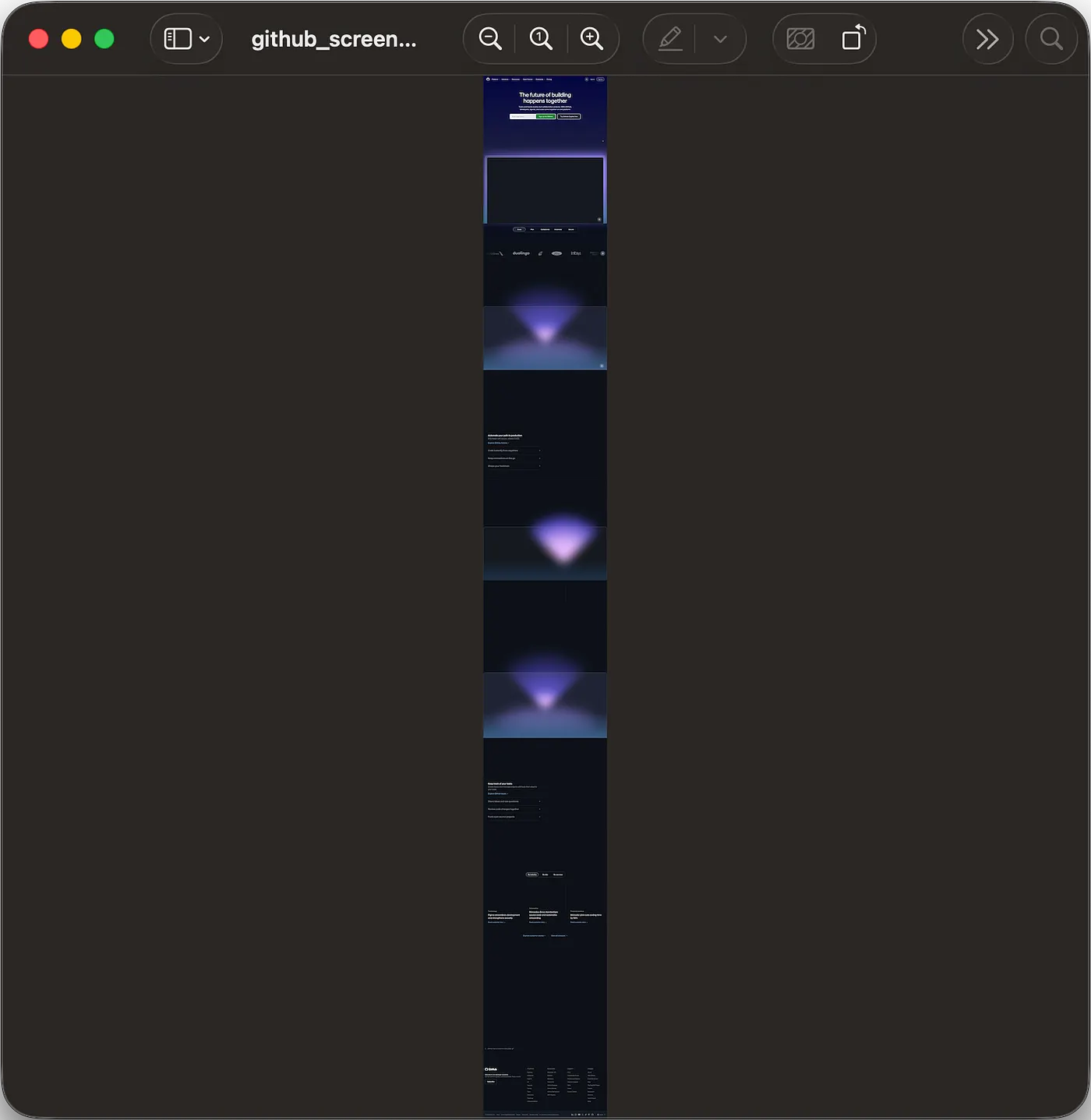
Captured Github Page
Generating PDF Documents
Another common use case is converting web pages to PDF documents for archiving or reporting purposes.
Endpoint: /pdf
curl -X POST \
  "http://192.168.1.30:3000/pdf?token=secret_token" \
  -H "Content-Type: application/json" \
  -d '{
    "url": "https://news.ycombinator.com",
    "options": {
      "format": "A4",
      "printBackground": true
    }
  }' \
  --output hackernews.pdf
This creates a PDF of Hacker News in A4 format with backgrounds preserved.
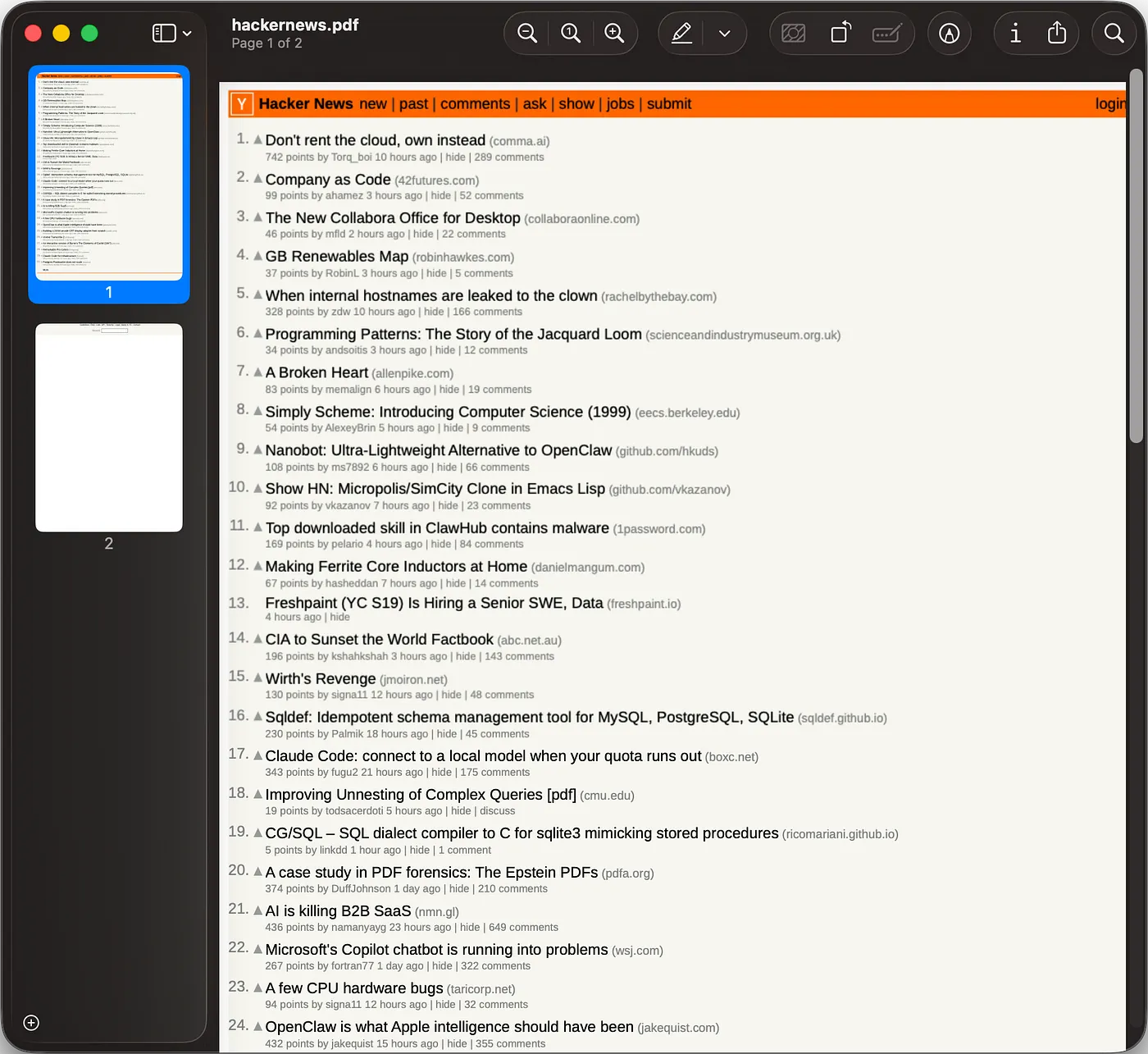
Exported hackernews page to PDF
Scraping Dynamic Content (Single Page Applications)
Traditional scraping tools struggle with Single Page Applications (SPAs) built with React, Vue, or Angular because they return empty HTML before JavaScript executes. Browserless solves this with the /content endpoint, which returns the fully rendered HTML after JavaScript has executed.
For example, let’s compare the difference when scraping the RealWorld Vue.js application, which is a genuine SPA that loads articles dynamically:
Direct cURL (returns minimal HTML):
$ curl https://vue-vuex-realworld.netlify.app/Output:
<!DOCTYPE html>
<html lang=en>
  <head>
    <meta charset=utf-8>
    <meta http-equiv=X-UA-Compatible content="IE=edge">
    <meta name=viewport content="width=device-width,initial-scale=1">
    <!--[if IE]>
     <link rel="icon" href="/favicon.ico">
      <![endif]-->
    <title>Conduit</title>
<-------------------- TRUNCATED -------------------->
  </head>
  <body>
    <noscript>
      <strong>We're sorry but vue-realworld-example-app doesn't work properly without JavaScript enabled. Please enable it to continue.</strong>
    </noscript>
    <div id=app></div>
    <script src="https://cdn.polyfill.io/v2/polyfill.min.js?features=default,Symbol"></script>
    <script src=/js/chunk-vendors.dcd10e99.js></script>
    <script src=/js/app.7ca7b6fc.js></script>
  </body>
</html>
This returns minimal HTML with an empty <div id=app></div> container and a clear message that JavaScript is required. The actual content is loaded dynamically via JavaScript after the page loads.
Browserless cURL (returns fully rendered HTML):
curl -X POST \
  "http://192.168.1.30:3000/content?token=secret_token" \
  -H "Content-Type: application/json" \
  -d '{
    "url": "https://vue-vuex-realworld.netlify.app/#/"
  }'
Output:
<!DOCTYPE html>
<html lang="en">
<head>
<meta charset="utf-8">
<meta http-equiv="X-UA-Compatible" content="IE=edge">
<meta name="viewport" content="width=device-width,initial-scale=1">
<!--[if IE]>
<link rel="icon" href="/favicon.ico">
<![endif]-->
<title>Conduit</title>
<-------------------- TRUNCATED -------------------->
</head>
<body>
<noscript>
<strong>We're sorry but vue-realworld-example-app doesn't work properly without JavaScript enabled. Please enable it to continue.</strong>
</noscript>
<div id="app">
<nav class="navbar navbar-light">
<div class="container">
<a href="#/" class="navbar-brand router-link-exact-active router-link-active"> conduit </a>
<ul class="nav navbar-nav pull-xs-right">
<li class="nav-item">
<a href="#/" class="nav-link router-link-exact-active active"> Home </a>
</li>
<li class="nav-item">
<a href="#/login" class="nav-link">
<i class="ion-compose"></i>Sign in </a>
</li>
<li class="nav-item">
<a href="#/register" class="nav-link">
<i class="ion-compose"></i>Sign up </a>
</li>
</ul>
</div>
</nav>
<div class="home-page">
<div class="banner">
<div class="container">
<h1 class="logo-font">conduit</h1>
<p>A place to share your knowledge.</p>
</div>
</div>
<div class="container page">
<div class="row">
<div class="col-md-9">
<div class="feed-toggle">
<ul class="nav nav-pills outline-active">
<!---->
<li class="nav-item">
<a href="#/" class="nav-link router-link-exact-active active"> Global Feed </a>
</li>
<!---->
</ul>
</div>
<div class="home-global">
<div>
<div class="article-preview">Loading articles...</div>
</div>
</div>
</div>
<div class="col-md-3">
<div class="sidebar">
<p>Popular Tags</p>
<div class="tag-list"></div>
</div>
</div>
</div>
</div>
</div>
<footer>
<div class="container">
<a href="#/" class="logo-font router-link-exact-active router-link-active"> conduit </a>
<span class="attribution"> An interactive learning project from <a rel="noopener noreferrer" target="blank" href="https://thinkster.io">Thinkster</a>. Code & design licensed under MIT. </span>
</div>
</footer>
</div>
<script src="https://cdn.polyfill.io/v2/polyfill.min.js?features=default,Symbol"></script>
<script src="/js/chunk-vendors.dcd10e99.js"></script>
<script src="/js/app.7ca7b6fc.js"></script>
</body>
</html>Browserless launches a real browser instance, waits for JavaScript to execute, and returns the fully rendered HTML with all dynamic content. Notice how the <div id="app"> now contains actual articles, navigation elements, and other content that was populated by JavaScript after the initial page load. Interestingly, the JavaScript-disabled warning remains in the output, but the dynamic content has been successfully rendered inside the app container.
Why does this matter? Because now you can scrape complex React/Vue apps using nothing but curl and bash. You don’t need to maintain a heavy Node.js environment or Python selenium setup on your $5 utility server just to check a price or get a headline. It turns “heavy” scraping into a lightweight HTTP request.
Managing Browserless: Monitoring and Control APIs
Browserless includes a set of management APIs designed for monitoring and controlling your instance. These are particularly valuable if you’re running Browserless in a production environment or managing multiple instances.
Monitor your Browserless instance’s performance and resource utilization in real-time.
curl -s "http://192.168.1.30:3000/metrics?token=secret_token"Sample response:
curl -s "http://192.168.1.30:3000/metrics?token=secret_token" | jq | head -n 20
[
  {
    "error": 0,
    "maxConcurrent": 1,
    "queued": 0,
    "rejected": 0,
    "running": 0,
    "sessionTimes": [
      30000,
      10611,
      30001,
      10597
    ],
    "successful": 2,
    "timedout": 2,
    "unauthorized": 0,
    "unhealthy": 0,
    "maxTime": 30001,
    "meanTime": 20302.25,
    "minTime": 10597,
This metrics endpoint provides key insights:
running: Number of active browser sessionsrejected: Requests rejected due to reaching capacity limits
You can easily integrate this into monitoring tools like Prometheus, Grafana, or custom dashboards to monitor the metrics.
Managing Active Sessions
Sometimes browser sessions become stuck due to script errors or network timeouts. Browserless provides APIs to list and terminate sessions programmatically.
List Active Sessions:
❯ curl -s "http://192.168.1.30:3000/sessions?token=secret_token" | jq
[
  {
    "id": "e5e2fd77-704f-4462-927a-11e3c115a57f",
    "initialConnectURL": "http://0.0.0.0:3000/function",
    "isTempDataDir": true,
    "launchOptions": {},
    "numbConnected": 1,
    "routePath": [
      "/chromium/function?(/)",
      "/function?(/)"
    ],
    "startedOn": 1770312796427,
    "ttl": 0,
    "userDataDir": "/tmp/browserless-data-dirs/browserless-data-dir-79f4455d-4440-4ed9-9b92-c85ce9feaf2b",
    "browser": "ChromiumCDP",
    "browserId": "e5e2fd77-704f-4462-927a-11e3c115a57f",
    "killURL": "http://0.0.0.0:3000/kill/e5e2fd77-704f-4462-927a-11e3c115a57f",
    "running": true,
    "timeAliveMs": 69716446,
    "type": "browser"
  },
Terminate a Specific Session:
curl "http://192.168.1.30:3000/kill/e5e2fd77-704f-4462-927a-11e3c115a57f?token=secret_token"When we try to query the active sessions, the previous sessions is terminated.
curl -s "http://192.168.1.30:3000/sessions?token=secret_token" | jq
[]
This gives you control over browser lifecycle management, helping prevent resource leaks and zombie processes.
Debugging Browser Sessions Remotely
While the paid Browserless service includes a visual dashboard for live session monitoring, the open-source Docker image doesn’t include this interface. Visiting http://192.168.1.30:3000/ in your browser will result in a 404 error.
However, Browserless still provides debugging capabilities through the Chrome DevTools Protocol. Here’s how to access them:
Common Networking Challenge
When using chrome://inspect in your browser and adding your Browserless server (e.g., 192.168.1.30:3000), you might encounter connection issues. The Docker container often reports its WebSocket URL as ws://0.0.0.0:3000/..., which causes your local Chrome to attempt connecting to your machine’s localhost instead of the actual server, resulting in failed connections.
Solution: Manual Debug URL Generation
Instead of relying on automatic discovery, you can construct the debugging URL manually. The format is:
devtools://devtools/bundled/inspector.html?v=1&experiments=true&ws=<SERVER_IP>:3000/devtools/page/<SESSION_ID>
To simplify this process, I created a Python script that fetches active sessions and generates the debug URLs automatically. Save this as debug_manager.py:
import requests

# Configuration - Update SERVER_IP to match your Browserless server
SERVER_IP = "192.168.1.30"  # Change to your actual server IP
BASE_URL = f"http://{SERVER_IP}:3000"

try:
    # Fetch active sessions
    resp = requests.get(f"{BASE_URL}/json/list?token=secret_token")
    sessions = resp.json()

    print(f"Found {len(sessions)} active sessions:\n")

    for s in sessions:
        if s['type'] == 'page':  # Only show page sessions
            sid = s['id']
            # Generate the debug URL
            debug_url = f"devtools://devtools/bundled/inspector.html?v=1&experiments=true&ws={SERVER_IP}:3000/devtools/page/{sid}"

            print(f"Title: {s.get('title', 'No title')}")
            print(f"URL: {s.get('url', 'No URL')}")
            print(f"Debug: {debug_url}")
            print("-" * 60)

except requests.exceptions.RequestException as e:
    print(f"Error connecting to Browserless: {e}")
except ValueError as e:
    print(f"Error parsing response: {e}")
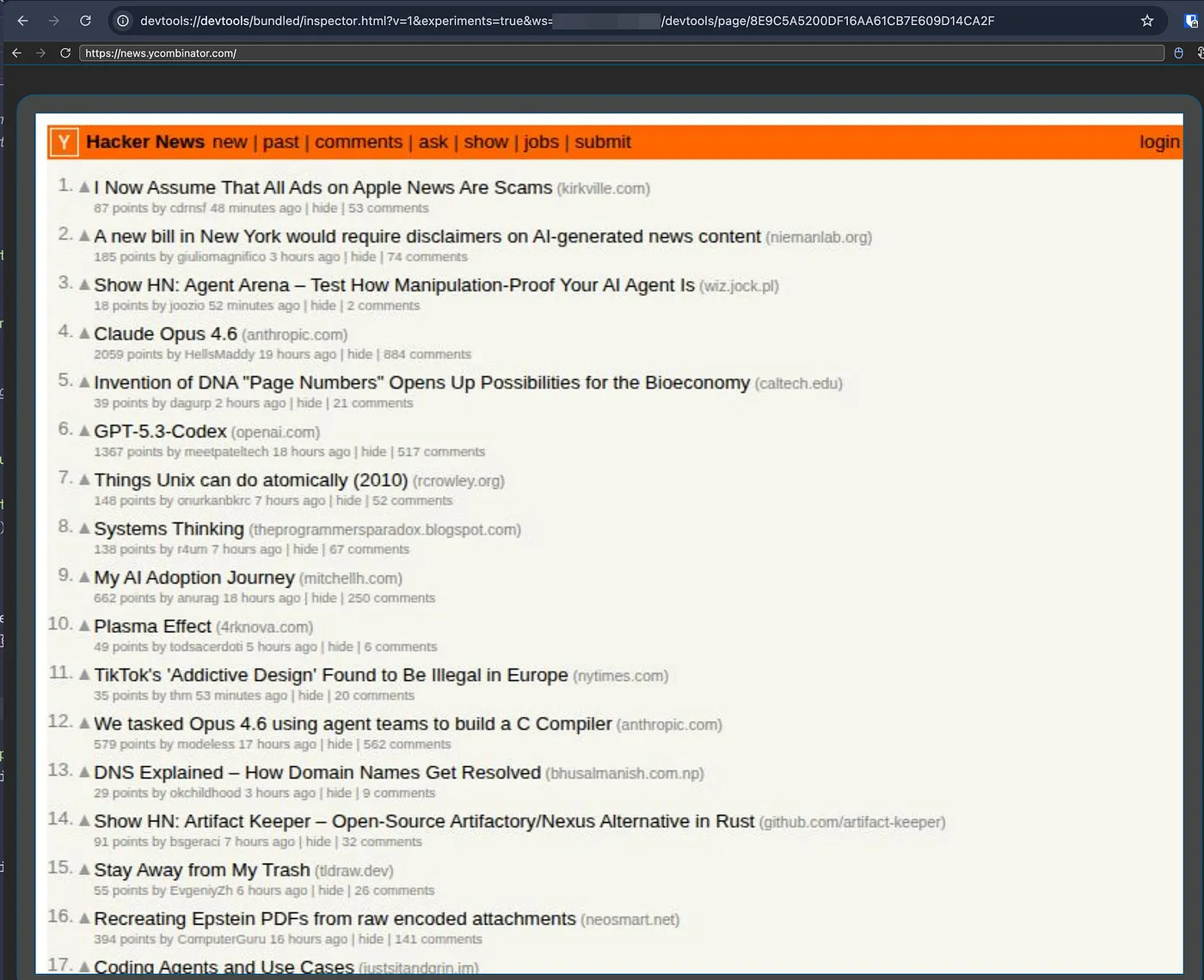
When you have a long-running task, simply run python debug_manager.py, copy the generated devtools:// link, and paste it into Chrome’s address bar. This bypasses networking issues and provides full remote debugging capabilities.
❯ python debug_manager.py
Found 6 active sessions:

Title: DEBUG ME NOW!
URL: https://news.ycombinator.com/
Debug: devtools://devtools/bundled/inspector.html?v=1&experiments=true&ws=192.168.1.30:3000/devtools/page/8E9C5A5200DF16AA61CB7E609D14CA2F
------------------------------------------------------------
Title: browserless.io function runner
URL: http://0.0.0.0:3000/function/index.html
Debug: devtools://devtools/bundled/inspector.html?v=1&experiments=true&ws=192.168.1.30:3000/devtools/page/1E5442CBD427F7F2BFEB00C00891DDE8
------------------------------------------------------------
Title: about:blank
URL: about:blank
Debug: devtools://devtools/bundled/inspector.html?v=1&experiments=true&ws=192.168.1.30:3000/devtools/page/D6BD48AA980E54CC2DE68D198FF5BA59
------------------------------------------------------------
Title: DEBUG CHECKER PAGE
URL: https://example.com/
Debug: devtools://devtools/bundled/inspector.html?v=1&experiments=true&ws=192.168.1.30:3000/devtools/page/E9071CDA27283D567B04792AEAA1E656
------------------------------------------------------------
Title: browserless.io function runner
URL: http://0.0.0.0:3000/function/index.html
Debug: devtools://devtools/bundled/inspector.html?v=1&experiments=true&ws=192.168.1.30:3000/devtools/page/66D5C812B86092C2445FA976DB82CE17
------------------------------------------------------------
Title: about:blank
URL: about:blank
Debug: devtools://devtools/bundled/inspector.html?v=1&experiments=true&ws=192.168.1.30:3000/devtools/page/3213C7360CBBEF6394C5FB91D63425BE
------------------------------------------------------------
Integrating Browserless with Your Code
Finally, if you do need to write code, integration is straightforward. You just replace puppeteer.launch with puppeteer.connect.
const puppeteer = require('puppeteer-core');

(async () => {
  const browser = await puppeteer.connect({
    // Don't forget the token!
    browserWSEndpoint: 'ws://192.168.1.30:3000?token=secret_token'
  });

  const page = await browser.newPage();

  console.log('Connected! Run the debug script to inspect this session.');

  await page.goto('https://example.com');

  // Do your complex logic here...

  await browser.close();
})();
Summary
Self-hosting Browserless turned out to be an insightful experiment. It transforms “headless chrome” from a heavy dependency into a flexible microservice.
Whether you’re using it for simple curl commands to generate PDFs, or managing a fleet of scrapers with the management APIs, it offers substantial capabilities for free. Give it a try on your local Docker setup!
Want to dig deeper? Once you have your container running, check out the full API documentation built right into your instance at: http://192.168.1.30:3000/docs
There you’ll find every single endpoint and parameter available to experiment with. Happy hacking!
Originally published on Medium.