As you may be aware, performing malware analysis requires a secure and isolated network environment. This is because malware can potentially spread and infect other systems on the network, causing damage and compromising sensitive data.
Maybe you are already familiar with tutorial that demonstrate how to setup isolated network environment using vmware or virtualbox. In this tutorial, I don’t want to use my own laptop for the malware analysis vm, it’s too dangerous. Something like Guest-to-Host escape is possible, example https://secret.club/2021/01/14/vbox-escape.html. It’s better to use ESXi or something that not related to personal machine.
Similar to VirtualBox or VMware, the concept of “Host Only” networking can be used in ESXi to create an isolated network environment. However, unlike VirtualBox or VMware, ESXi does not have a pre-configured “Host Only” adapter network. As a result, it is necessary to manually configure a network adapter to create an isolated network environment.
Creating Host Only Adapter
First we need to create vSwitch
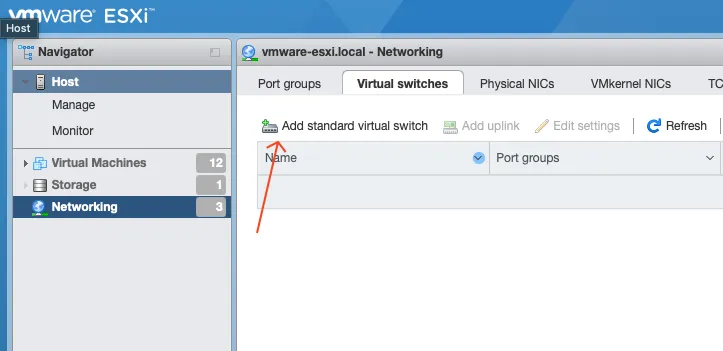
Add virtual switch
Click Add standard virtual switch
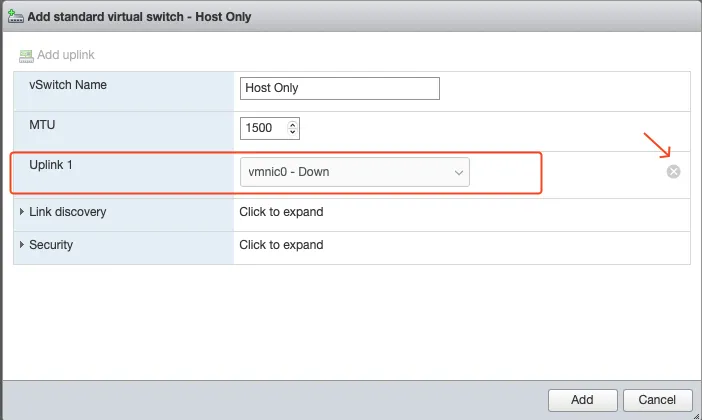
Add virtual switch and remove the uplink
Don’t forget to remove uplink because we don’t need uplink for the host only network. I repeat, NO UPLINK.
Here is our vSwitch with 0 uplinks.
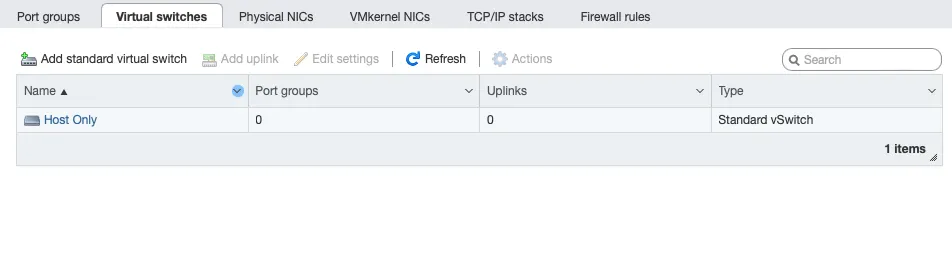
Success add vswitch
The next step is click Add port group in Port groups tab. Change the name to Host Only and Virtual switch to Host Only that we created before.
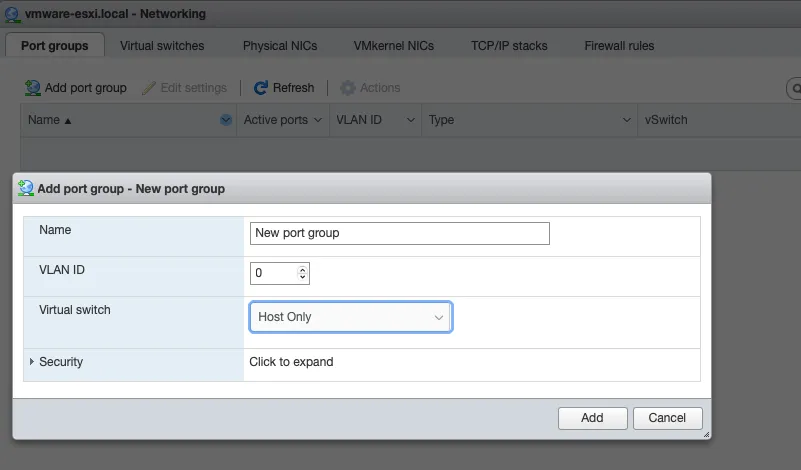
Add port group
This is the correct result as expected.
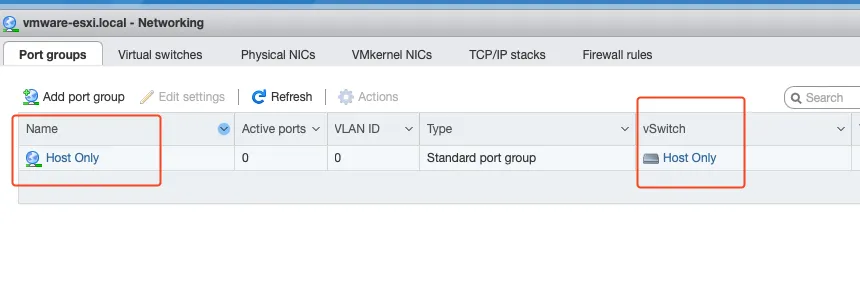
Success add port group
Testing Host Only Network
For testing this network, I will use 2 vm: windows and remnux. Make sure that the vm use Host Only as network adapter 1.
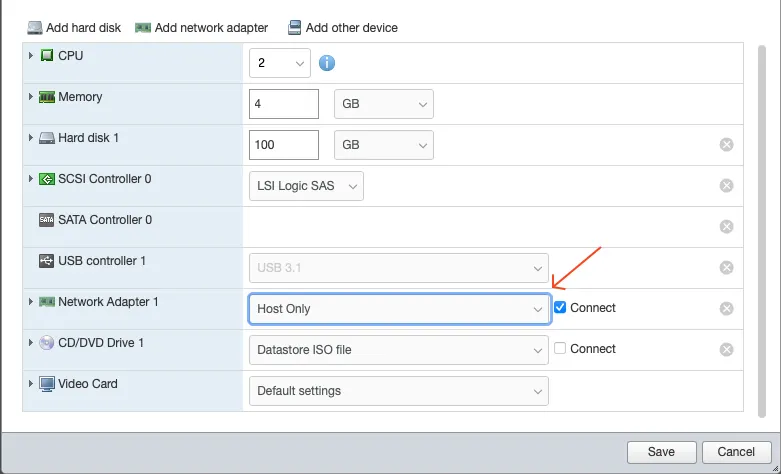
Change network adapter to Host Only
After booting the vm, we can see that windows and remnux it set to dhcp by default and not getting the ip.
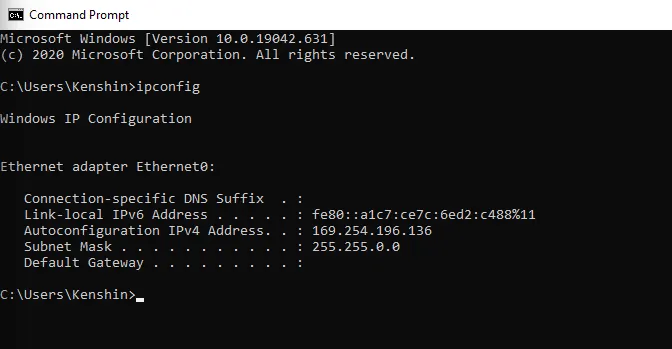
Windows ipconfig
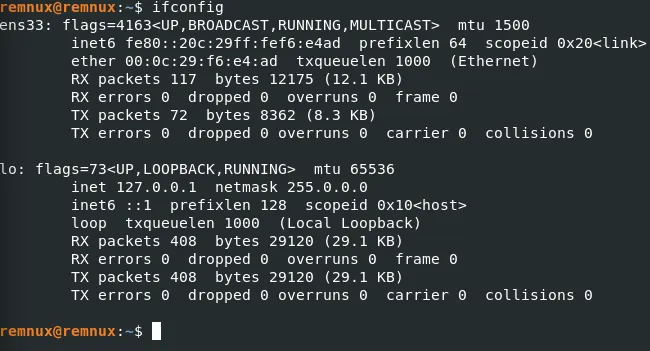
Remnux ifconfig
For this testing, we will set the static ip for both vm:
- Windows -> 10.10.10.2
- Remnux -> 10.10.10.3
Pinging windows to remnux and vice versa
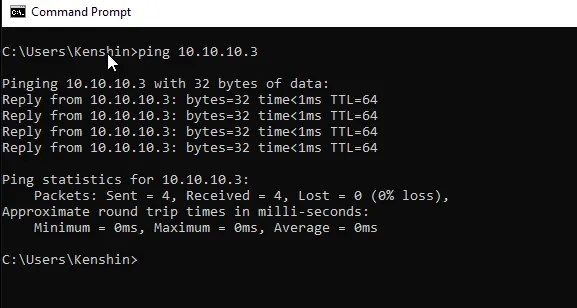
Windows ping to remnux
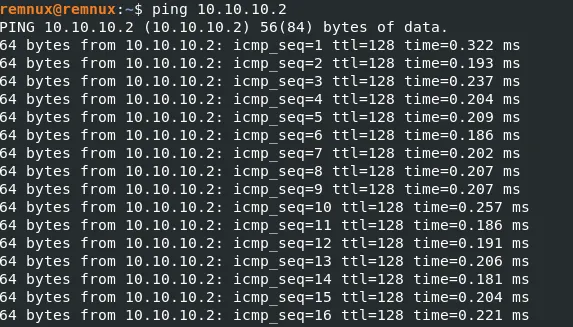
Remnux ping to windows
Ping to other LAN segment
We need to make sure that our real network is not accessible from our malware vm. I try to tracert my LAN segment and it can’t access. Good.
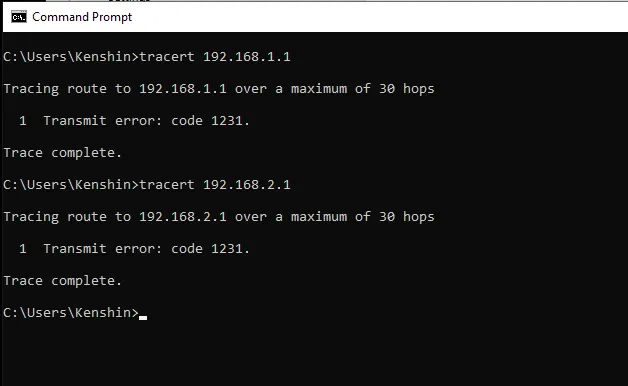
Tracert LAN segment
Ping to internet
We need to make sure that vm can’t access the internet.
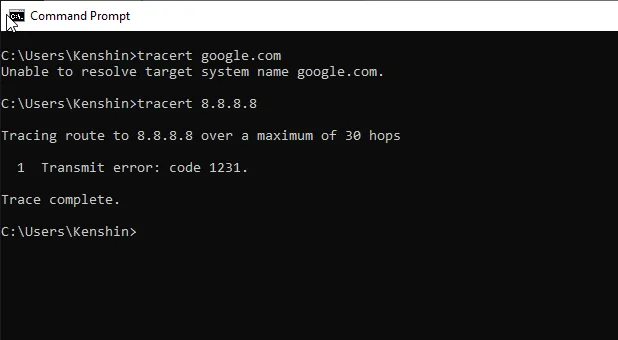
Simulating the network with INetSim
One way to create a simulated network environment for malware analysis is by using INetSim. INetSim is an open-source software that allows you to emulate a variety of network services, including DNS, HTTP, and FTP. By simulating these services, you can create a virtual network environment that closely resembles a real-world network.
On our remnux vm, edit the /etc/inetsim/inetsim.conf, uncomment and edit the line
start_service dns
service_bind_address 0.0.0.0
dns_default_ip       <YOUR_REMNUX_IP>
Save and start the inetsim program
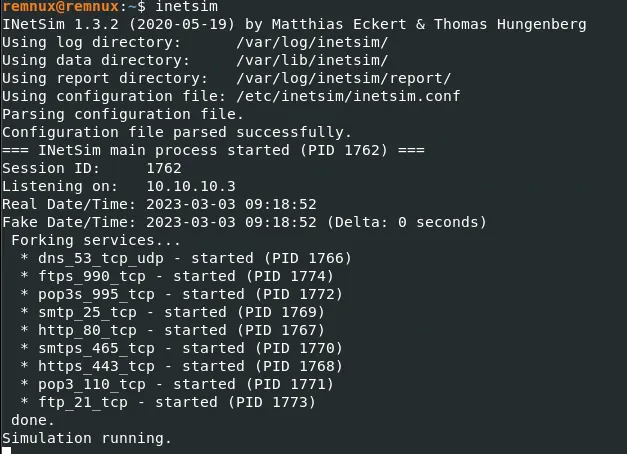
INetSim
From our windows vm, we try to check the inetsim by accessing http://REMNUX_IP/
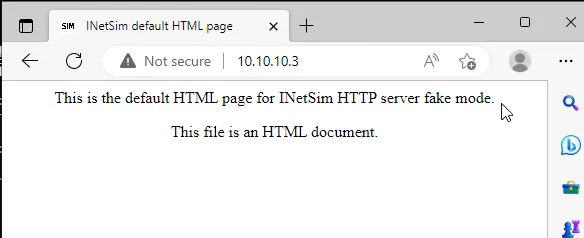
INetSim default page
As you can see, INetSim is success. But, our malware will access the specific domain. To be able to simulate that, we need to set dns address in windows to remnux ip.
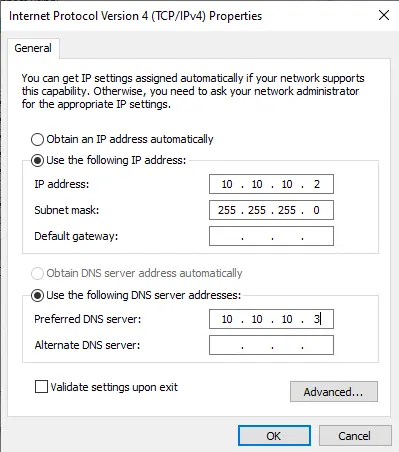
DNS Setup
Check again by accessing ourevildomain.com
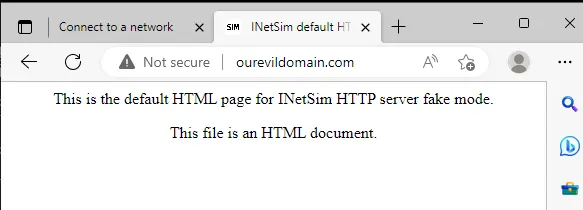
Accessing domain via INetSim
Whatever domain the malware try to access, it will always redirect to our INetSim. If malware try to download.exe, our INetSim will simulate the download process. Let’s try to access http://evil.com/payload.exe
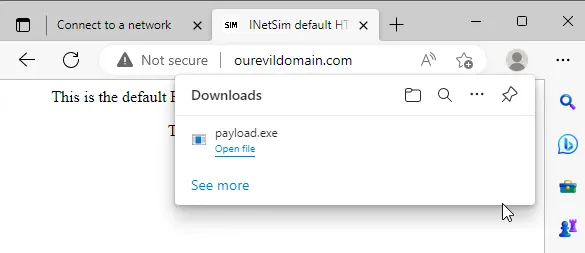
Downloading exe via INetSim
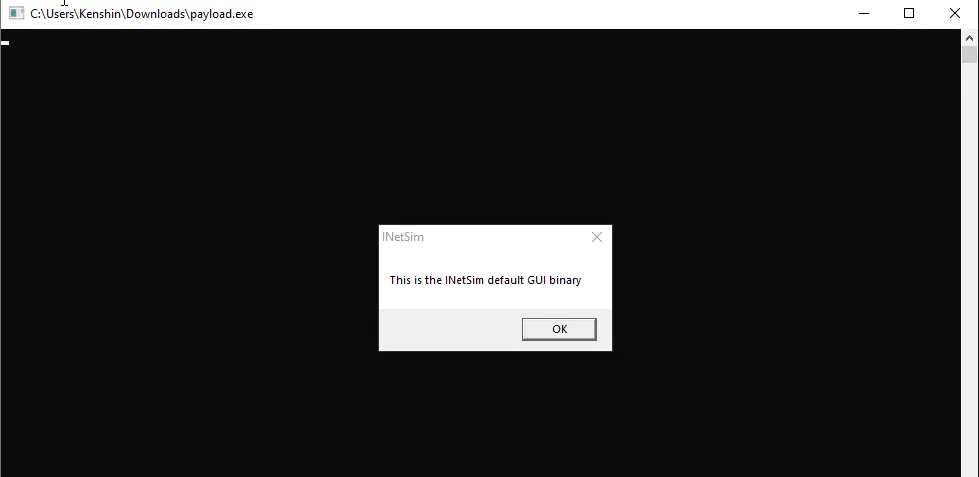
INetSim exe
Summary
- Isolated network environment is necessary for malware analysis.
- The concept of “Host Only” networking can be used in ESXi to create an isolated network environment.
- We can use INetSim to simulate network traffic
- INetSim capable of simulating domain access and file download
I hope this information was helpful for understanding the importance of creating an isolated network environment for malware analysis. Always use isolated environment.
Note: In creating this article, I utilized ChatGPT, a large language model trained by OpenAI, to assist with writing and editing. ChatGPT was instrumental in ensuring that the content was clear, concise, and easy to understand. Its advanced capabilities allowed me to quickly and efficiently produce high-quality content that is both informative and engaging.
Originally published on Medium.